RESELLER GUIDES / LIVE SELLING
Live show preparation walkthrough: from lineup to after-show reconcile.
This walkthrough follows one show from the day before to the morning after, for a host and one crew member using ItemIQ’s Host View and Remote Host. The physical side — lineup order, labels and staging areas — is covered in the 10-minute pre-show reset. This page covers the software side and where the two meet.
The example show
A Whatnot show of 20 handbags and small leather goods, one host on camera and one crew member at a laptop. Every item already has a SKU and photos in ItemIQ. The table shows three of the twenty, as they might look the day before.
| Order | SKU | Item | Record check | Action |
|---|---|---|---|---|
| 1 | IIQ-000214 | Monogram card holder | Copy reviewed, cost recorded | Ready |
| 2 | IIQ-000231 | Leather shoulder bag | AI draft not reviewed | Review copy before the show |
| 3 | IIQ-000198 | Canvas tote | No cost recorded | Add cost, or accept no minimum-price strip |
The day before: get the records show-ready
- Fix the lineup and its order. Write the SKUs in show order. The crew will send them in this order, so it doubles as the run sheet.
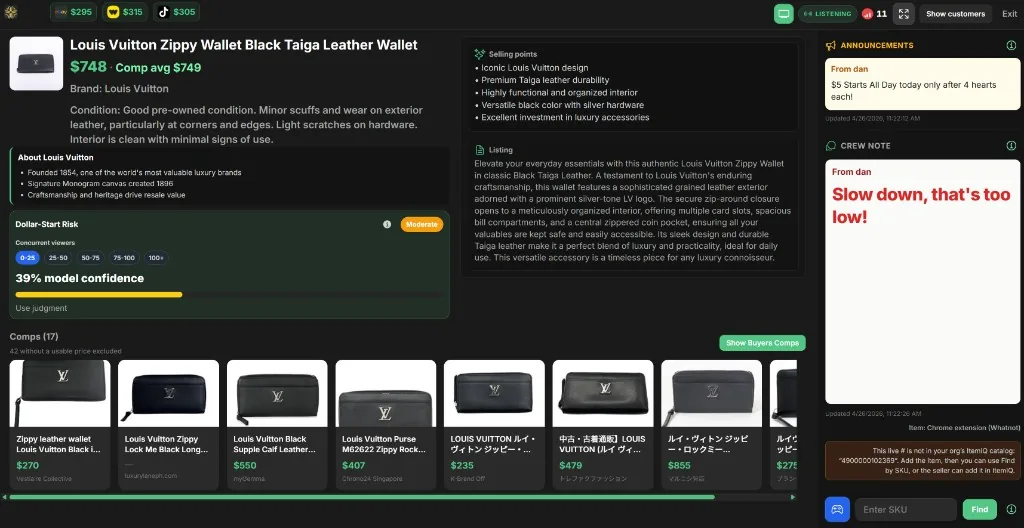
- Review the copy Host View will show. Host View displays each item’s title, condition, selling points and listing description. If any of that is still an unreviewed AI draft, correct it now; the photo-to-listing tutorial shows how. Remove claims you can’t back up, such as “authentic” without an authentication.
- Check costs. The per-marketplace minimum prices and the live profit estimates use the item’s recorded cost. With no cost, or for a team member who isn’t allowed to see costs, that strip is hidden. Dollar-Start Risk also uses cost alongside the brand and the lowest comp.
- Glance at comps for the items you’ll dollar-start. Comps come from a visual search for similar products. A thin or mismatched set of comps is a reason to start that item higher, or to drop it from the dollar-start slot.
- Prepare the marketplace side. Export a Whatnot CSV for the lineup from ItemIQ’s Export page and upload it in Whatnot. ItemIQ does not create the show or the listings in Whatnot for you; check them there.
One hour before: set up the two screens
- Host computer: open Host View. Sign in with an account in your organization and put it full-screen on the monitor the host will glance at. The iPhone app’s Host View works too, if the host is away from a desk.
- Start live sync (optional). In Host View, start remote sync and paste the show URL (Whatnot, eBay Live, or the TikTok seller console). Choose where the data comes from: the ItemIQ Chrome extension on this computer, the extension on another computer, or cloud only if the extension isn’t available. Turn on auto-load if you want catalog items to load when the synced live SKU matches.
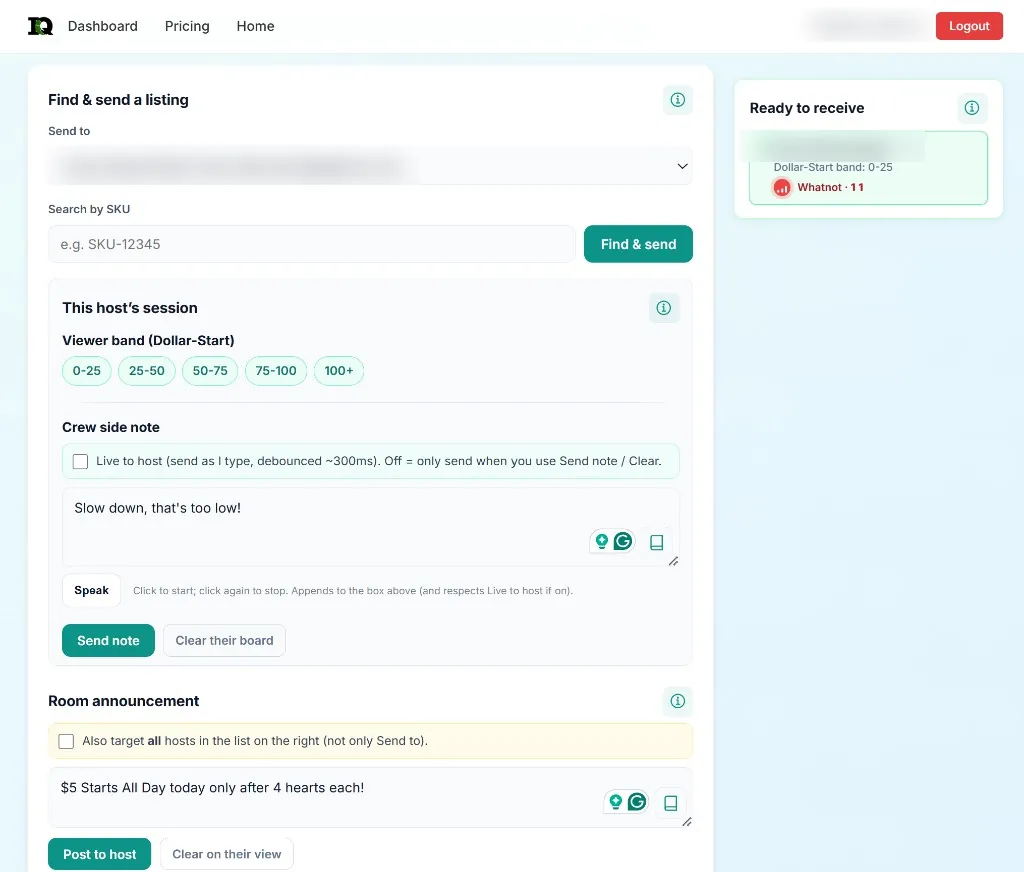
- Crew laptop: open Remote Host. Confirm the host appears under Ready to receive, select them in Send to, and set the viewer band you expect at the start.
- Agree on the signals. Decide what kind of note means “slow down”, “move on” or “that item is wrong”, and who can mark an item sold. Keep notes short; the host reads them mid-sentence.
- Rehearse one handoff. The crew sends SKU 1. The host confirms the screen shows the item in their hand, by reading a distinguishing detail aloud. Send a test note and clear it. If the item on screen doesn’t match, stop and fix the record or label before going live.
During the show: a steady rhythm
- Crew sends the next SKU while the current item closes. Searching by SKU and pressing Find & send before the host finishes keeps dead air short.
- Host talks from the screen. Selling points and condition are there to read from; comps give a range to mention. Use Show Buyers Comps only if you intend viewers to see them.
- Adjust the viewer band as the room changes. Dollar-Start Risk is an estimate for that band; it says “use judgment” for a reason.
- Use notes for the host and announcements for the room. A crew note (“slow down, that’s too low!”) appears only on Host View. An announcement, such as a giveaway rule, stays on screen until it’s cleared.
- Handle a mismatch immediately. If the host holds a different item than the screen shows, the crew pulls up the right SKU and sends it. Don’t sell from memory.
After the show: reconcile before restocking
- Compare the sold lots with the marketplace’s orders. Host View’s synced sold list is a live view; the platform’s orders are the record of what sold and at what price.
- Mark sold items in ItemIQ. Set them sold on their item records so they stop showing as available in ItemIQ and in later exports. This doesn’t change listings on other marketplaces; end or update those there.
- Return unsold items to their locations. If you use SKU Location, update placements as items go back on shelves.
- Note what broke. One missing cost, one confusing note, one mislabeled item: fix that one thing before the next show.