RESELLER GUIDES / LISTING PREP
From photos to a reviewed listing: a step-by-step ItemIQ tutorial.
This tutorial takes one item from the shelf to a listing you’d be comfortable publishing: eight photos, an AI draft, a field-by-field review, a price check and an export. It uses the ItemIQ iPhone app for capture and AI, and optionally the website for editing at a desk. Plan on doing your first item slowly; the review step is the one that matters.
Before you start
- A free ItemIQ account (create one) and the ItemIQ app on an iPhone, signed in with the same account.
- The item, a plain background and even light. A SKU label on the item, or the ID you’ll give it.
- A tape measure, and five minutes to inspect the item properly. The AI can’t do that part.
Credits: the AI draft and the comps search don’t use credits. Background removal uses 1 credit per photo and Enhance Photos uses 2; both are optional. The Free plan includes 20 credits a month.
Step 1 — Photograph the item (8 photos)
- Turn on 8 Pics on the home screen, so Quick SKU takes up to eight photos of one item instead of one. Turn on Training Mode the first few times: it shows which angle to take next.
- Decide on backgrounds. Remove Background gives each photo a white background for 1 credit. Enhance Photos (2 credits) replaces it with a fuller edit. Leave both off if your marketplace or style doesn’t need them.
- Tap Quick SKU and take the eight angles. Training Mode’s order is front, left side, right side, back, bottom, interior, detail (handles, hardware, tags or damage) and serial/brand close-up. Tap Done when finished, then enter or scan the SKU and upload.
The last two angles do the most work later. The AI reads labels, hardware and date codes from photos, and a buyer judges condition from the detail shots. If there’s a flaw, photograph it; don’t rely on the description alone.
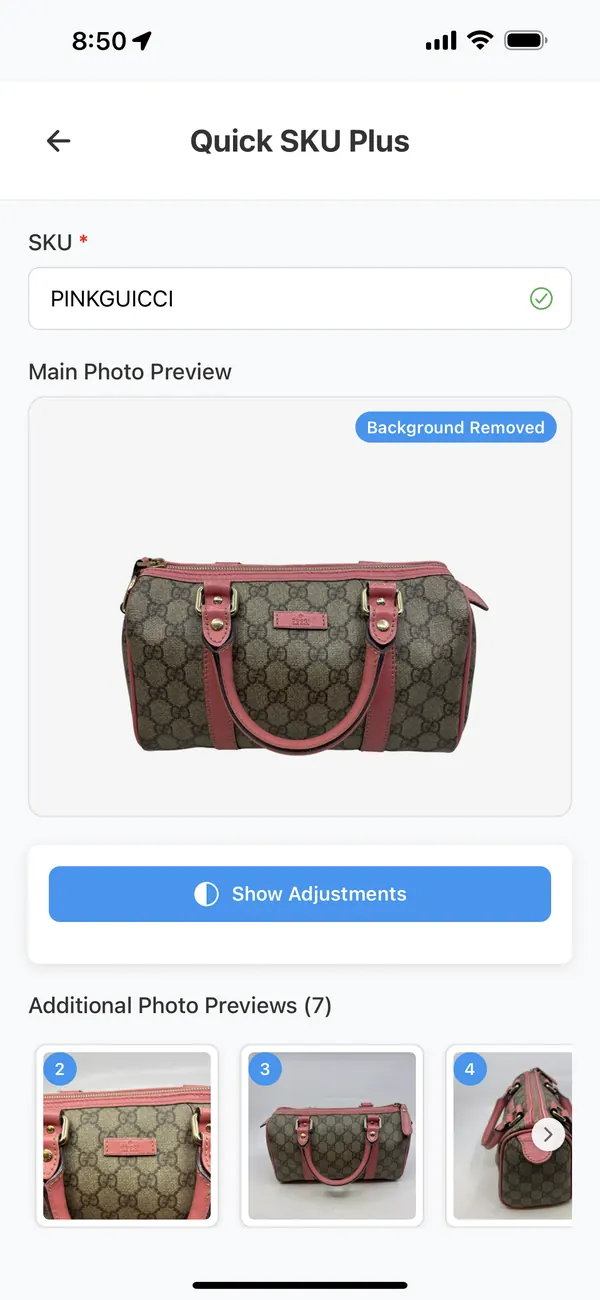
Step 2 — Generate the AI draft
- Open the item. Find it in My Items (or search its SKU) and open the item page.
- Tap Get Analysis in the AI Analysis section. It opens Ask IIQ with the item’s photos. (My Items also has an Ask IIQ link on each row.)
- Tap Ask IIQ and wait while it shows “Thinking…”. The results appear under Analysis Results: title, description, brand, product type, materials, colors, condition, size if the model is confident, categories, key features, selling points and a suggested price range.
- Tap Save. The draft is now attached to the item.
You can also tap Ask on the home screen to analyze a single photo before an item exists, but starting from the saved item uses all eight photos and keeps the result with the SKU.
Step 3 — Review every field
Tap the pencil icon in the AI Analysis section to edit, and Save Analysis when you’re done. At a desk, the same fields are editable on the website’s item page. Go through them in this order, with the item in front of you:
| Field | Check against | Common correction |
|---|---|---|
| Brand and model | Labels, stamps, hardware engraving | Model guessed from a similar style; remove it if you can’t confirm it |
| Authenticity wording | Your authentication, if any | Delete “authentic”, “genuine” and similar unless you can back them up |
| Condition | Your own inspection | Replace general phrases with specific notes: corners, handles, lining, odor, repairs |
| Size and measurements | A tape measure | Add real measurements; size is often blank or approximate |
| Materials and colors | The item, in daylight | Coated canvas read as leather; color names that differ from the marketplace’s options |
| Title | Marketplace limits and search terms | Add the measured size or a confirmed model name; keep it under the channel’s limit |
| Description | Everything above | Remove any sentence you didn’t verify; add what a buyer would ask about |
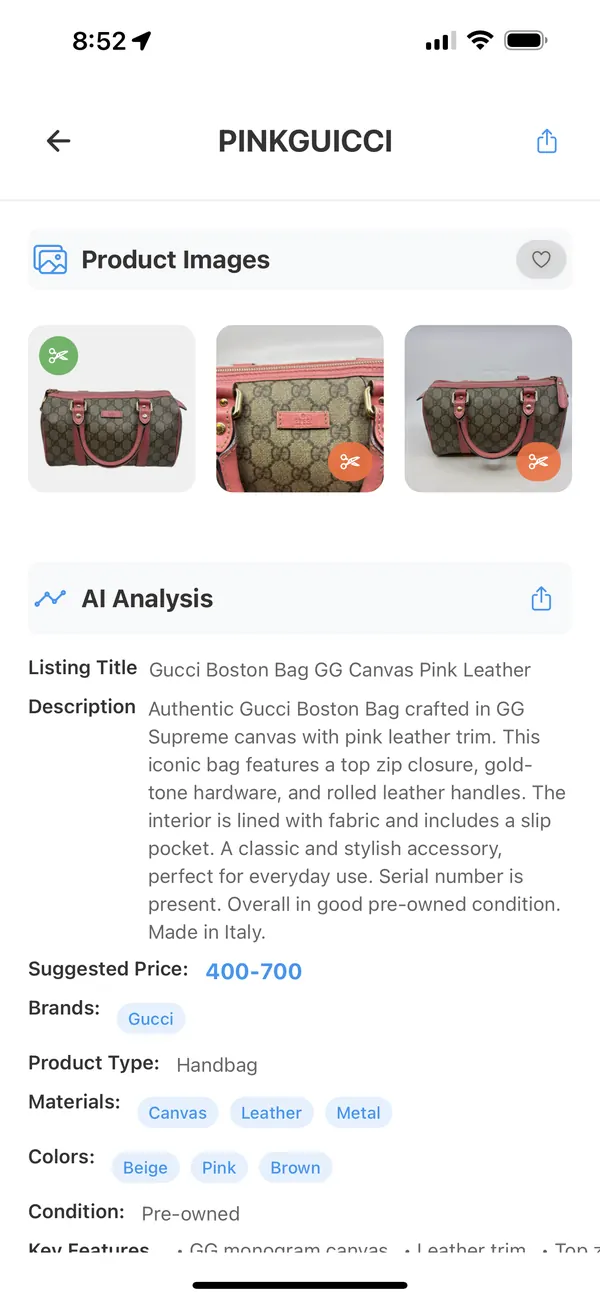
The AI listing preparation page shows this draft next to example corrections.
Step 4 — Check the price
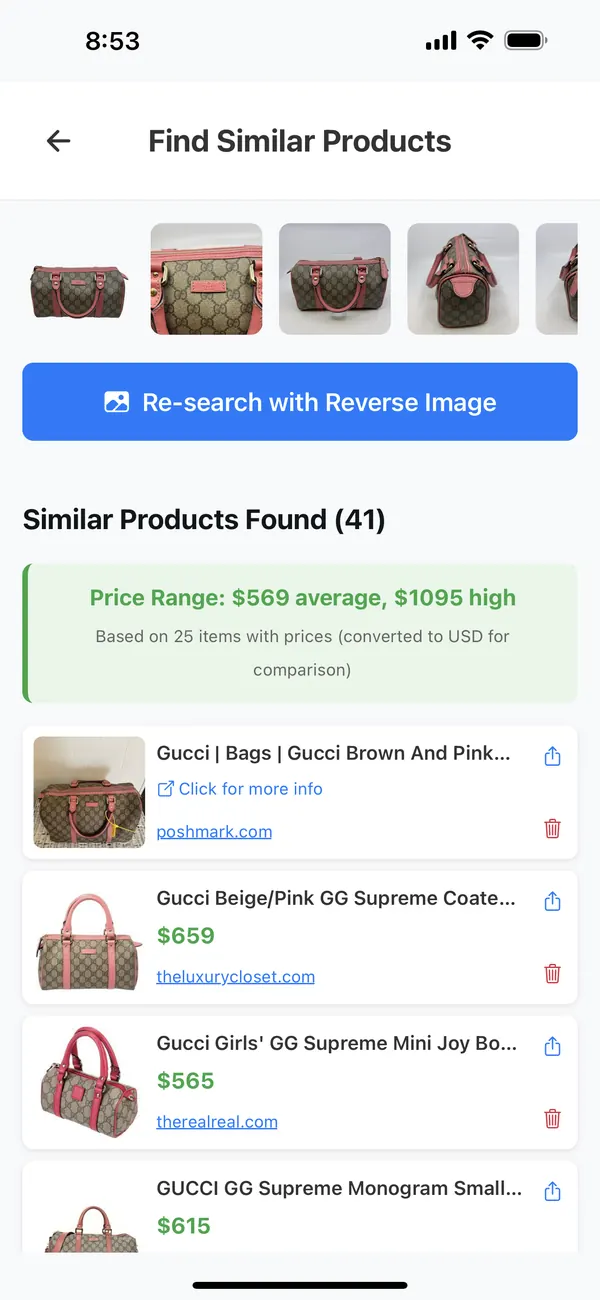
- Tap Comps on the item’s row in My Items. Find Similar Products runs a visual search and lists matching listings with prices, plus a range from the priced matches.
- Refine and filter. Use Refine Your Search and the result filters to drop matches that are a different model, size or condition.
- Set your price. Weigh the remaining comps, your cost and the item’s condition. The AI’s suggested range is context, not a valuation.
Step 5 — Prepare it for where it will sell
- For a marketplace upload: tap Export on the home screen (or the website’s Export page), tick the item, choose a format — ItemIQ CSV, Whatnot CSV, eBay CSV, TikTok Handbags, Shopify CSV, Custom Export or IIQ Bulk ZIP — and export. Upload the file on the marketplace.
- For a connected store: Shopify (connected on the web) and eBay (connected in the app) can publish the item. Check the listing in the store afterwards.
- For a live show: the reviewed title, condition and selling points are what Host View shows the host. See the live show preparation walkthrough.
Before it goes live anywhere, open the listing on the marketplace itself. Categories, required fields and brand rules are the marketplace’s, and an export can’t check them for you.